We are a new experience trying to build the watch party category. Here are explanations of how to use our products the first time.
In some cases things are technical but it’s like riding a bike after you do it once.
For Creators
Mechanics of Streaming
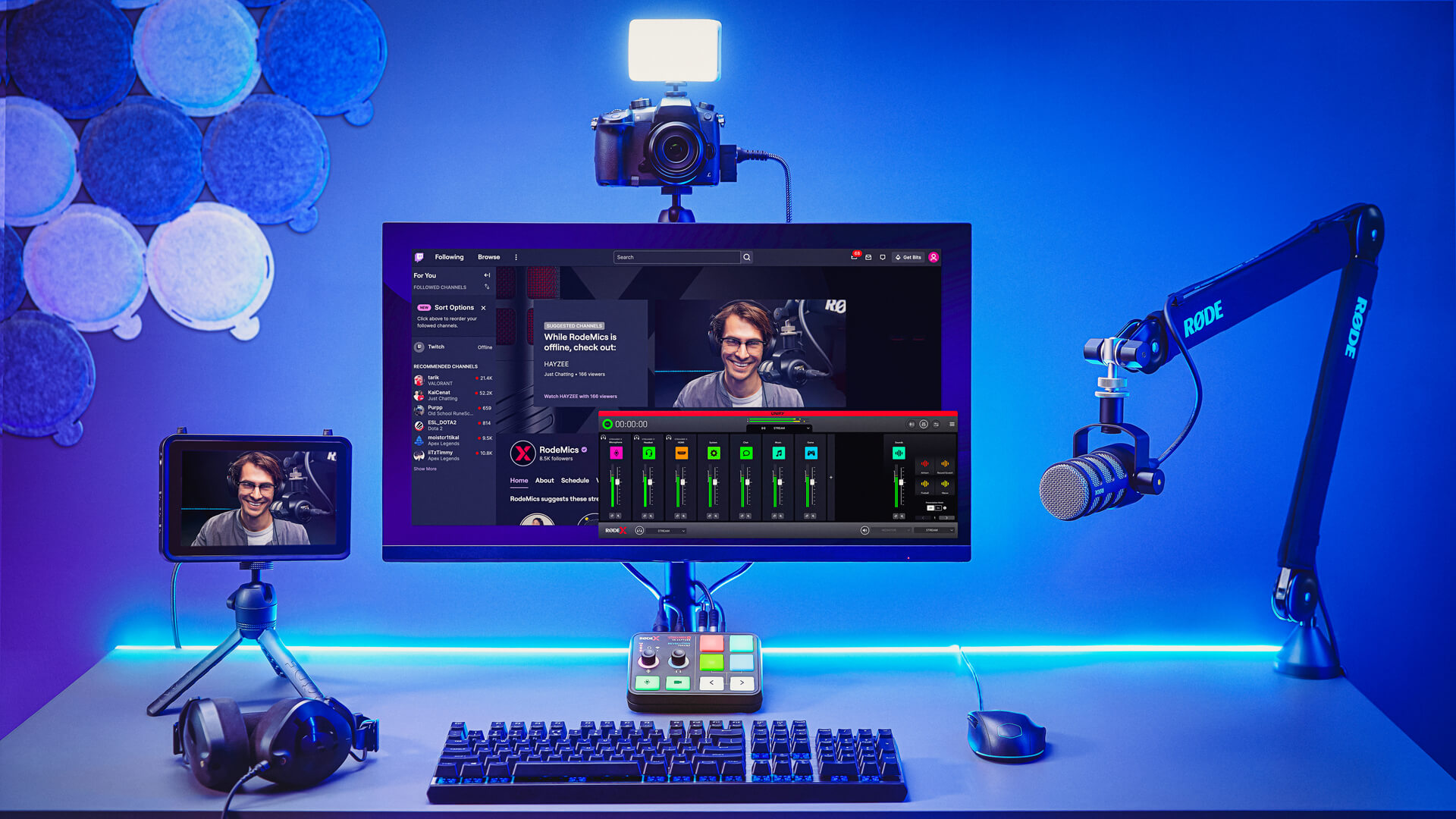
Streaming is a process where an audio-visual streaming tool (OBS, Streamyard) connects to a streaming server, which sends information to a website (or many websites in the case of multistreaming).
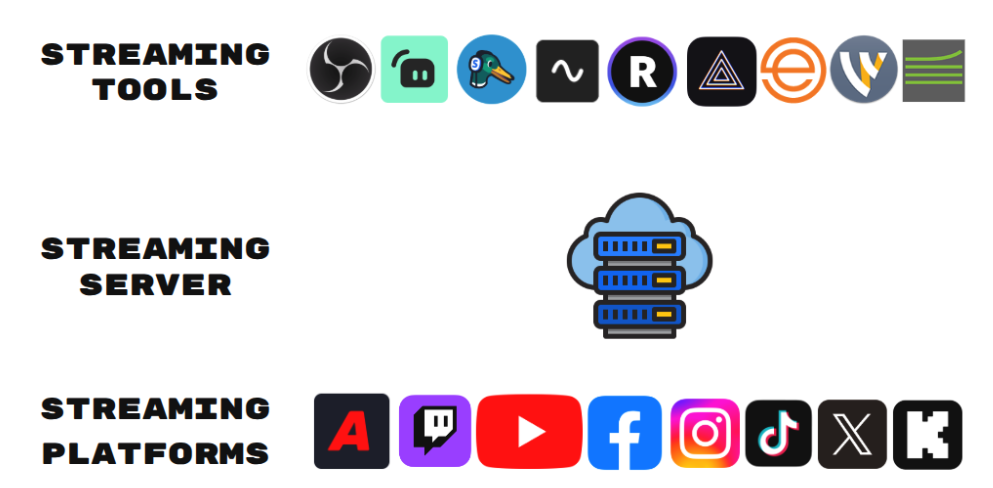
Available streaming tools include: OBS, Streamlabs, Streamyard, Riverside, Restream, Prism Live, Ecamm, Wirecast and Larix. Some platforms combine all three functions.
How to Go Live On Assist
Activate streaming by selecting the “Go Live” button, which prompts you to:
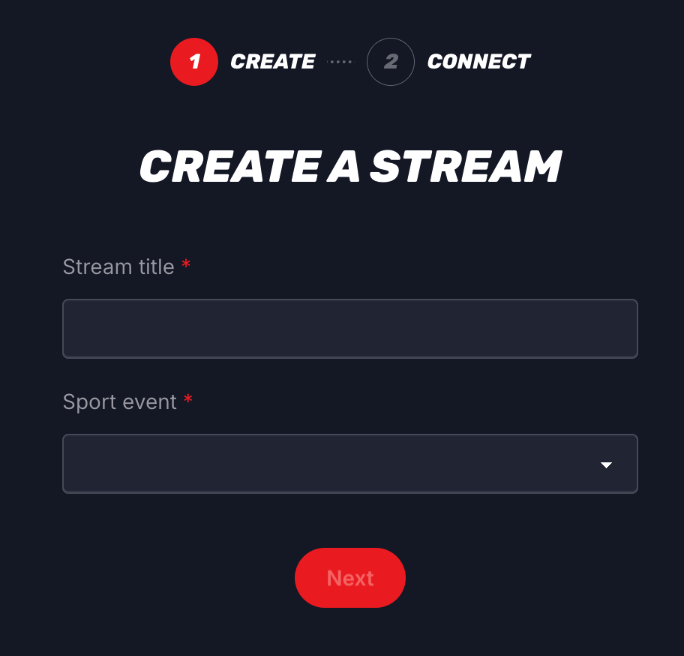
The next page will ask you to 1) Name your stream and 2) Select the event to cover.
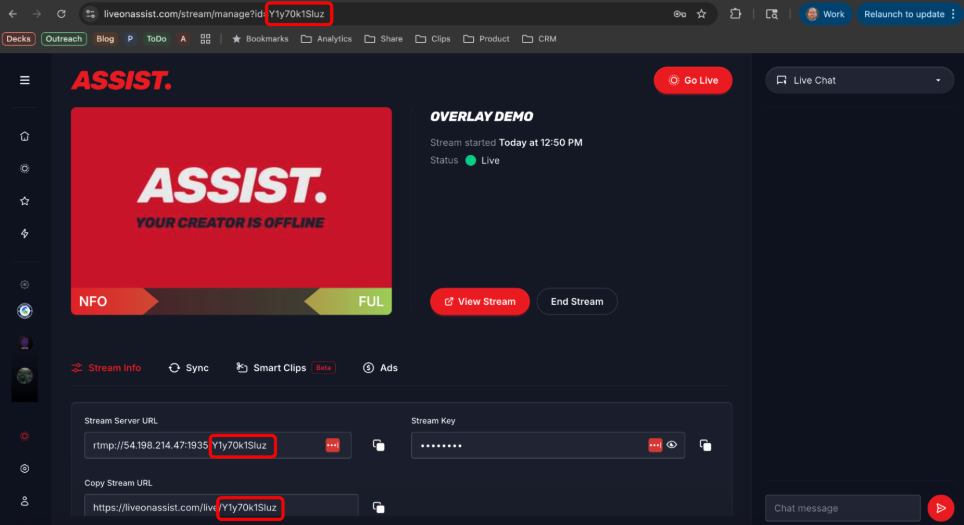
The system then spends 45 seconds generating: a) a stream server URL and b) stream key
These credentials are entered into your chosen streaming tool under Settings > Stream > Destination.
Important: Our streams cannot be scheduled in advance and currently operate on a use-it-or-lose-it basis. If you do not connect to the stream within 20 minutes of it being created, it will expire.
Control Room
The Control Room is where you manage your stream.
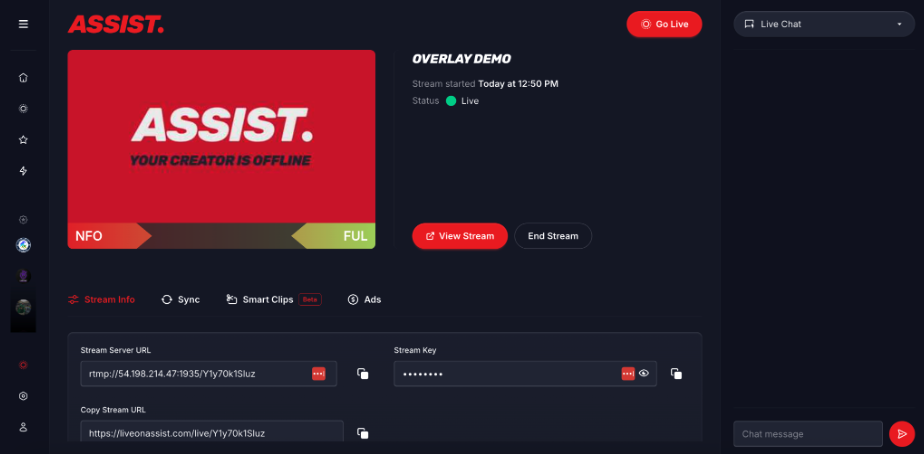
The Control Room interface displays connection status and stream management tools. The top-left window shows either “Your Creator is Offline” or a flickering stream preview.
Sync to the Game
Synchronizing the event clock with TV broadcasts is critical.
Steps:
- Use buttons to match “Your TV” clock to the actual television time
- Hit the Set Sync Point button
- Verify “Your TV” matches “Current Sync Point”
- Monitor the scoreboard ribbon for accuracy
Synchronization should occur during a running clock for best results.
Before Syncing 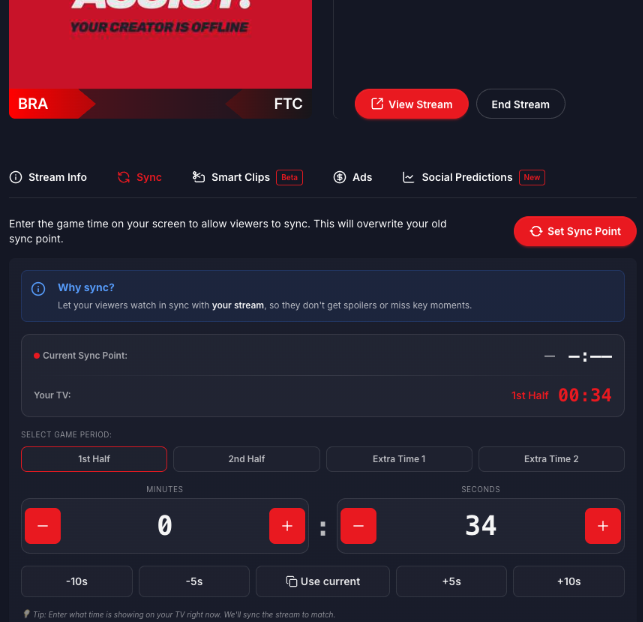
After Syncing 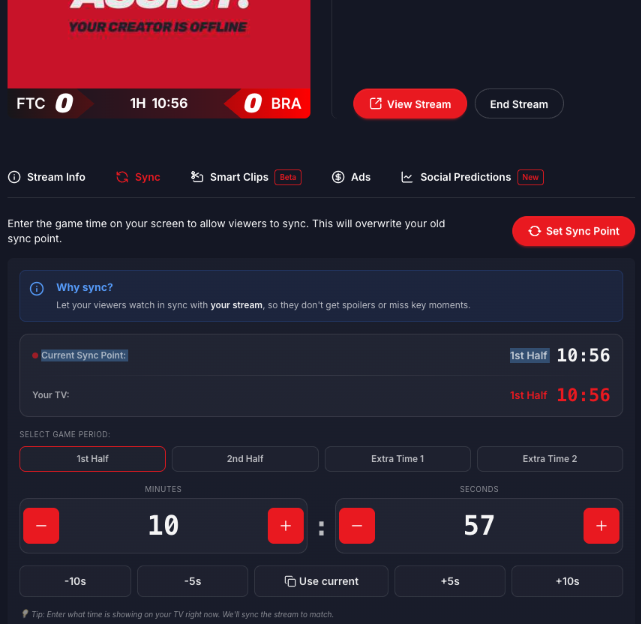
Clips
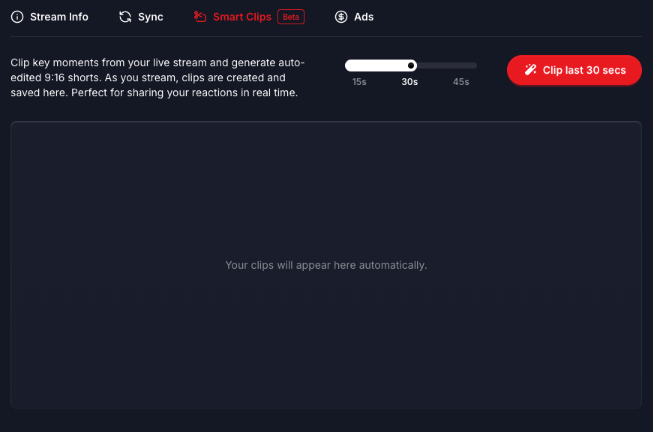
Smart Clips automatically generates clips of key moments. You also have the option to manually clip any moment during your stream. Produced clips can be downloaded for personal use and posting across your channels.
Ads
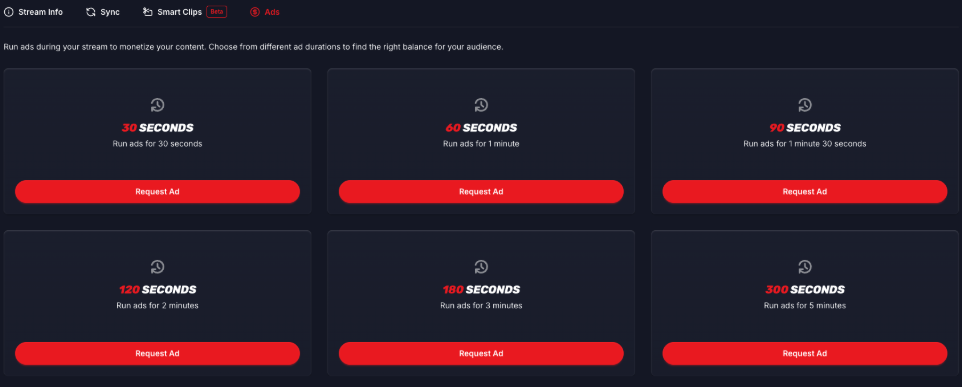
The ads tab offers various advertisement lengths for monetization. Since they are targeted ads, you will never see any of them but you will notice the window in the top left changing to a placeholder image when an ad is running.
Gambling/Predictions
The platform includes social prediction features allowing:
Creators to display their predictions
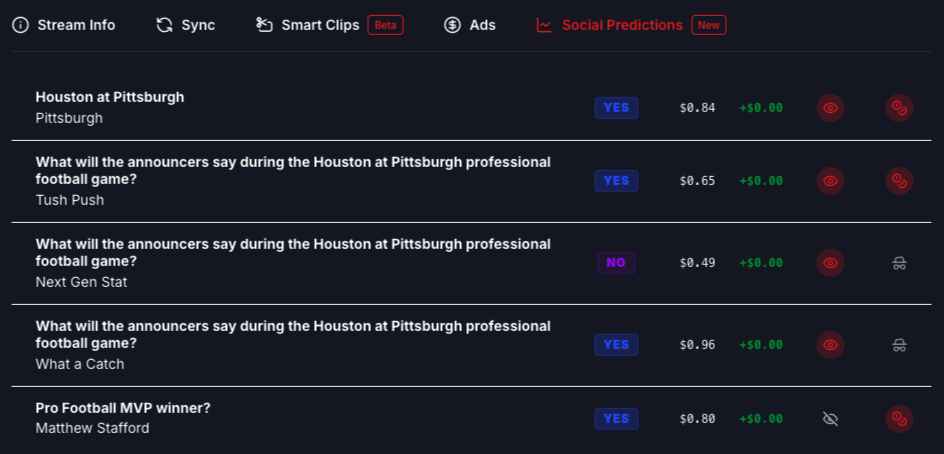
Anonymous aggregate display of chat predictions
Viewers to participate in predicting alongside creators
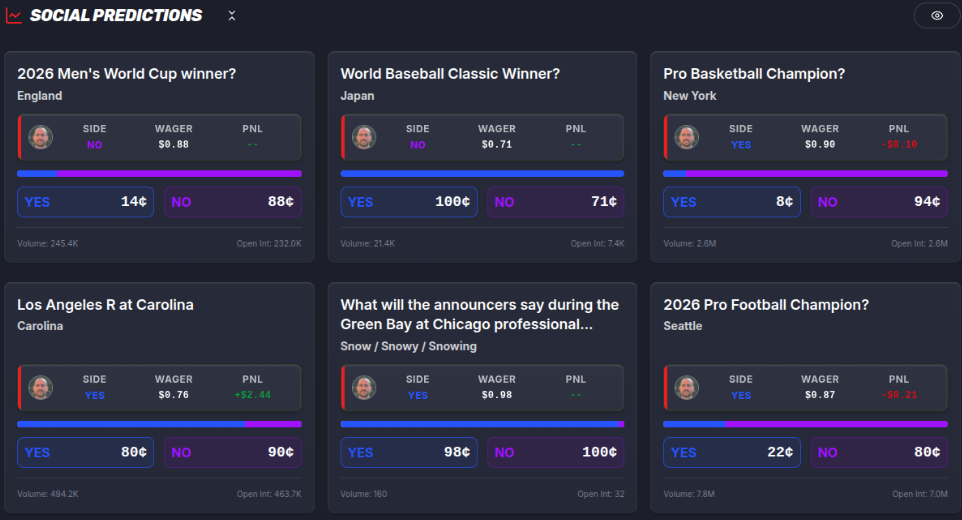
Authentication requires connecting a Kalshi account via the key icon. Here are their instructions.

Spoiler-Free Chat
For live sports, every chat message is either a spoiler or a delayed reaction to what a viewer is watching on TV. Spoilers cause disengagement or user confrontation.
Our spoiler-free chat system delivers messages at appropriate event timestamps. Creators access only live chat, while viewers can toggle between spoiler-free (default) and live options.
Chat Options 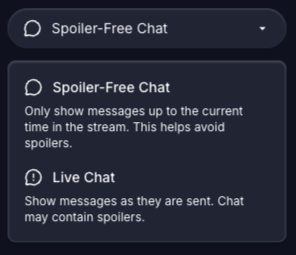
Live Chat Including ALL messages 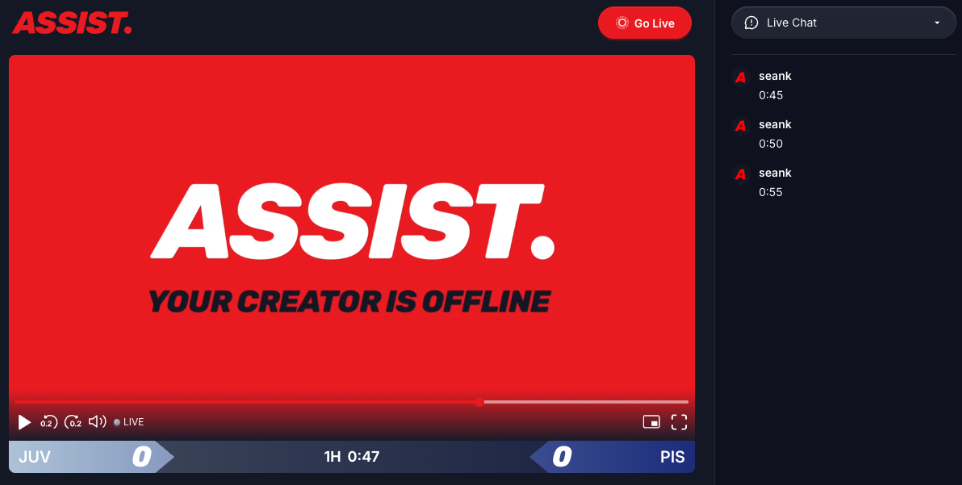
Spoiler-Free Chat only including messageds up to 0:47 in the stream 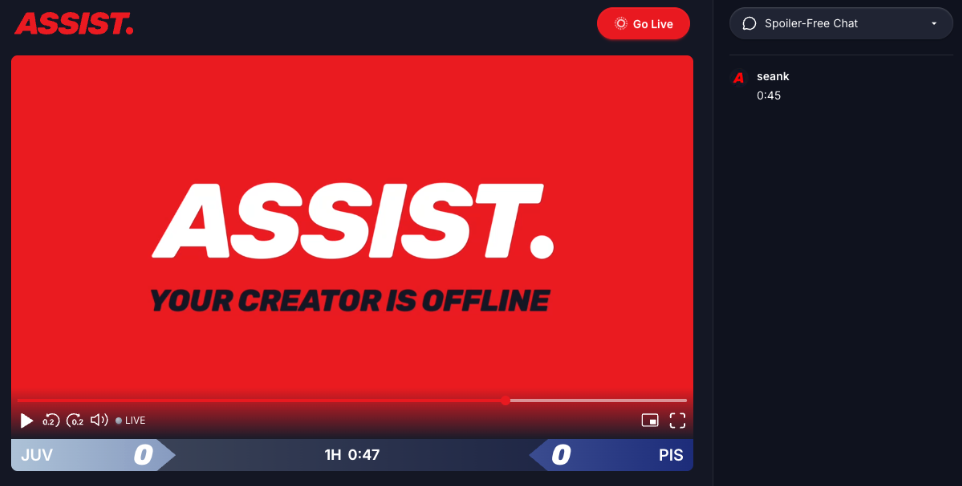
Scoreboard
The platform provides sport-specific scoreboards sport-specific scoreboards available as popout links for YouTube and Twitch overlays.
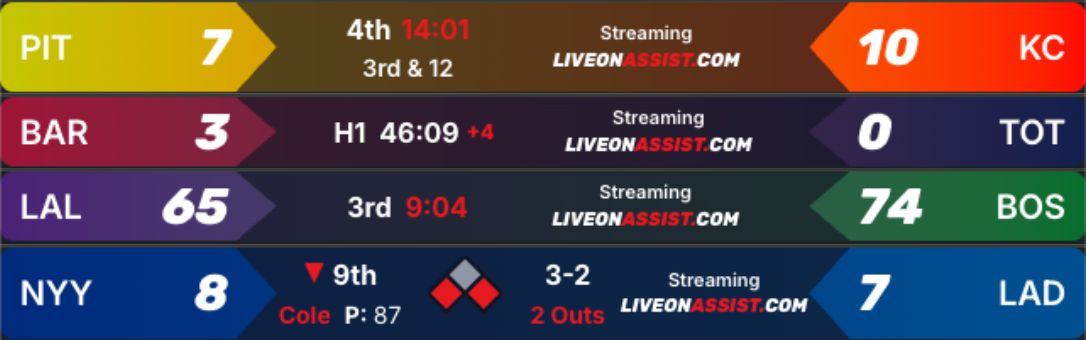
The URL structure generally follows this pattern: https://liveonassist.com/overlays/score/stream/yourStreamId
But it should replace “yourStreamID” with your actual stream id (see image below).
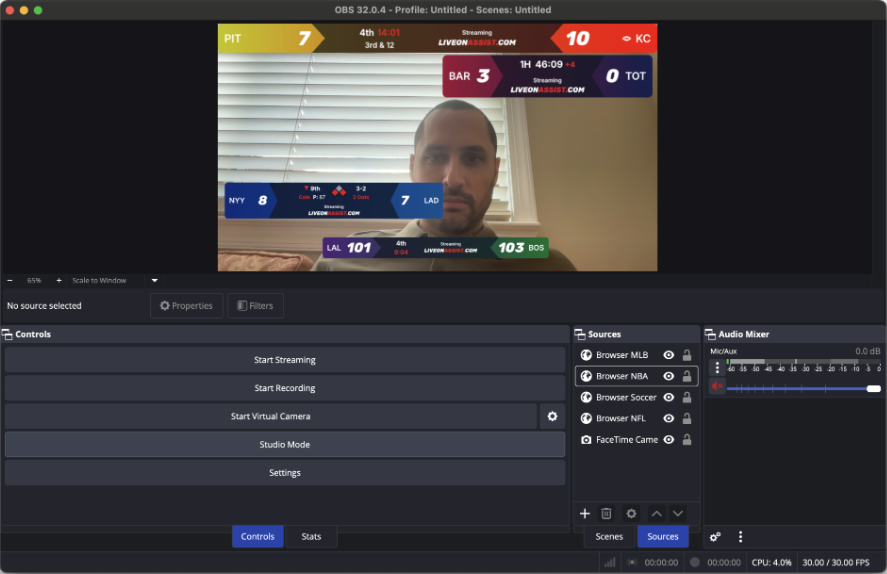
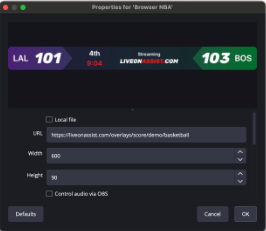
For OBS: Add a browser source containing the scoreboard URL, then resize and position accordingly.
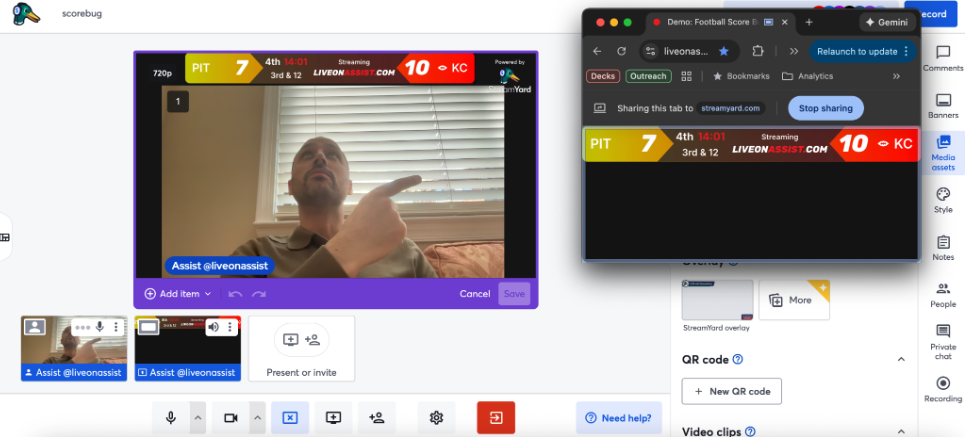
For Streamyard: Create custom layouts with camera slots and media slots, opening the scoreboard in a separate window, resizing it and sharing the tab.
If you want to remove the black space beneath the scoreboard in the browser, change the dimensions of your screen:
- Right click on the page, select “Inspect”
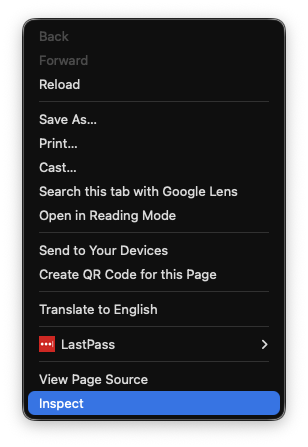
- Right click on the page, select “Inspect”
- Toggle the mobile viewing mode in the bottom left of the screen
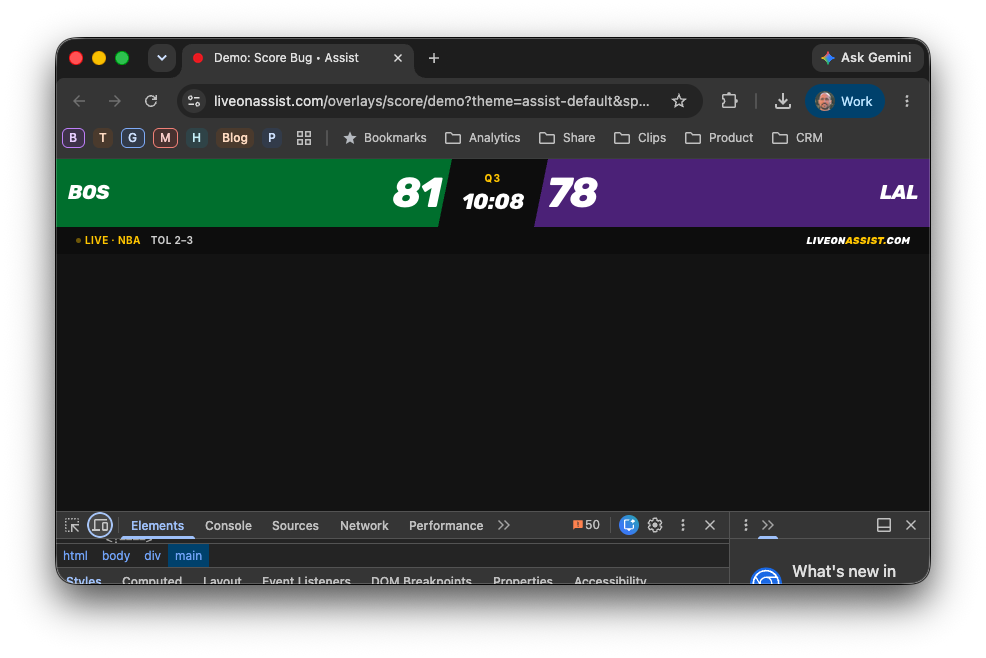
- Toggle the mobile viewing mode in the bottom left of the screen
- Change the horizontal or vertical dimensions of the page.
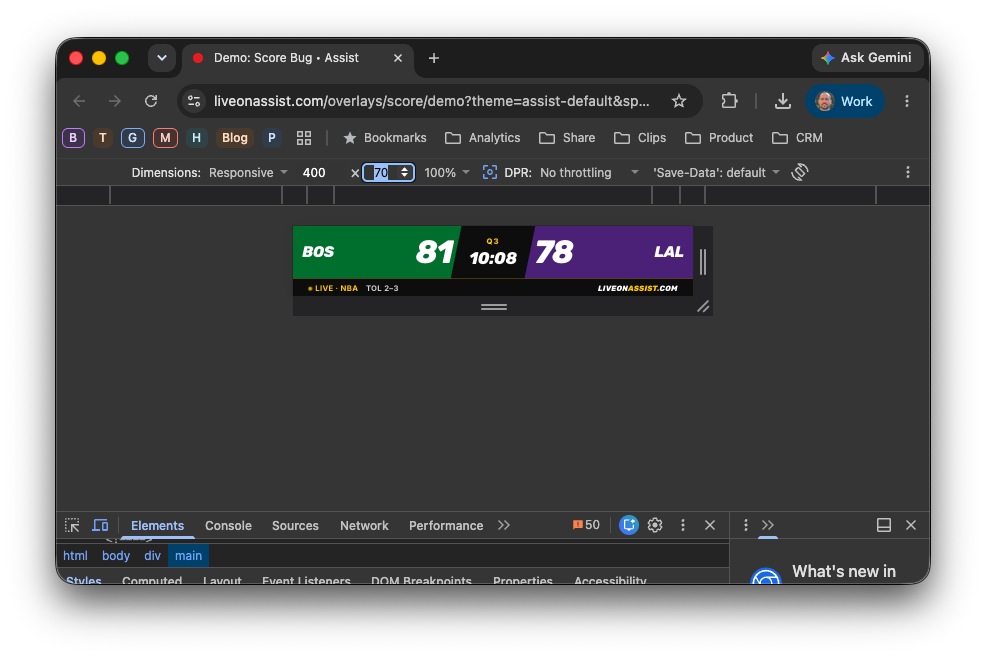
- Change the horizontal or vertical dimensions of the page.
For Restream: Create custom layouts with camera slots and media slots.
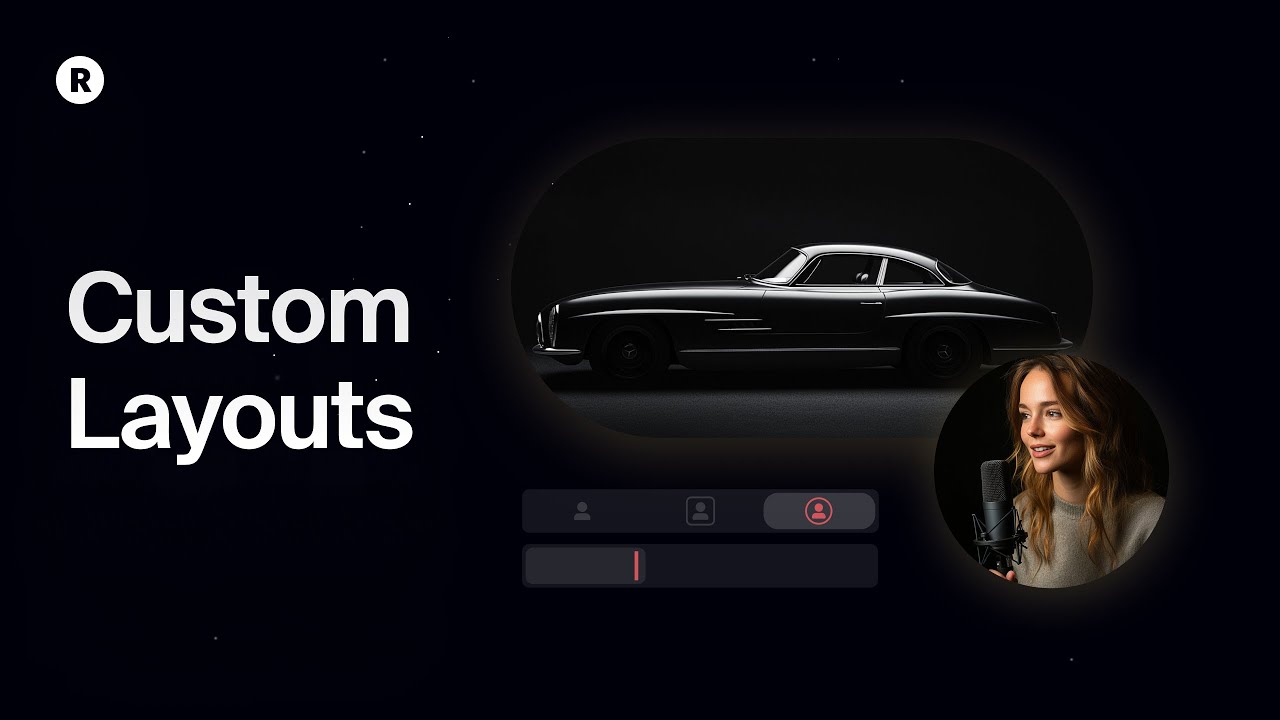
OBS Virtual Camera option: You can leverage OBS as a virtual camera for Streamyard integration.
In-Stadium Streaming
Stadium streaming requires mobile streaming engines. Recommended options include Streamlabs Mobile or Larix Broadcaster.
Since the live games are often two whole minutes ahead of the TV broadcast, most fans will watch you on a lag. This gives us time to upload your full stream so your viewers have a high quality broadcast to watch.

For unreliable WiFi, software bonding services like Speedify can boost signals.
For Fans
Single Screen Experience
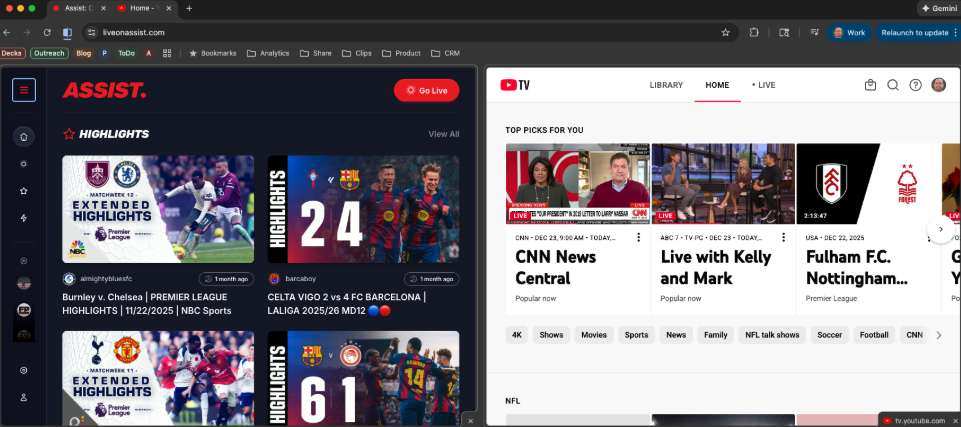
The platform currently operates as a second-screen experience with two workarounds:
Laptop Split Screen
Configure Split Screen in Chrome, launch both the game and the Assist stream, then synchronize timing for side-by-side viewing.
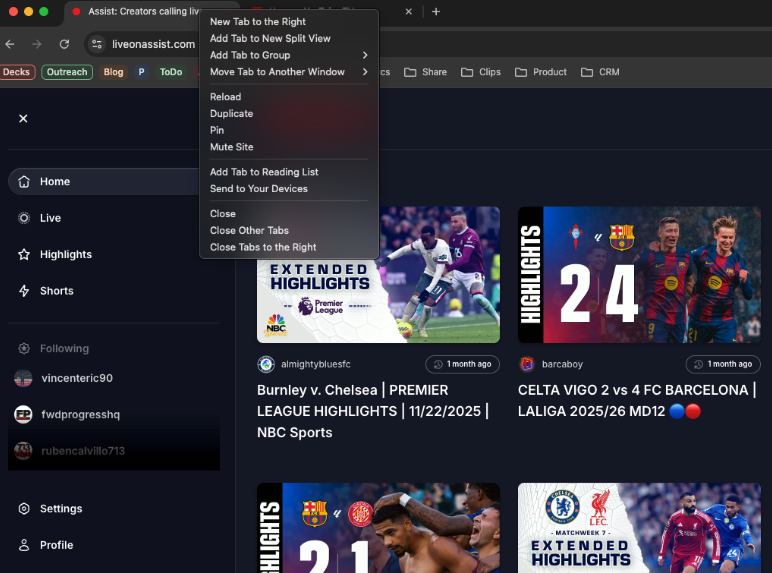
Picture-in-Picture Mode
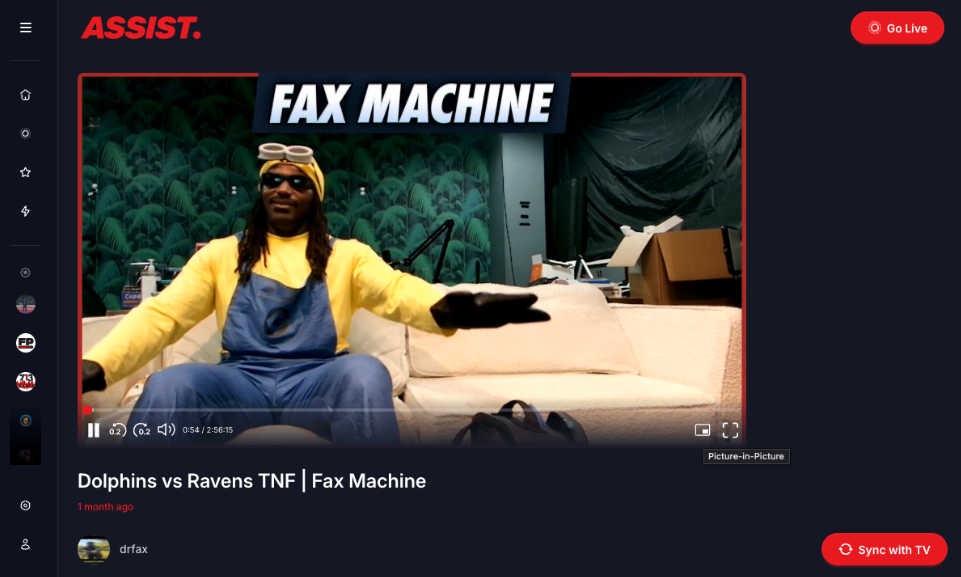
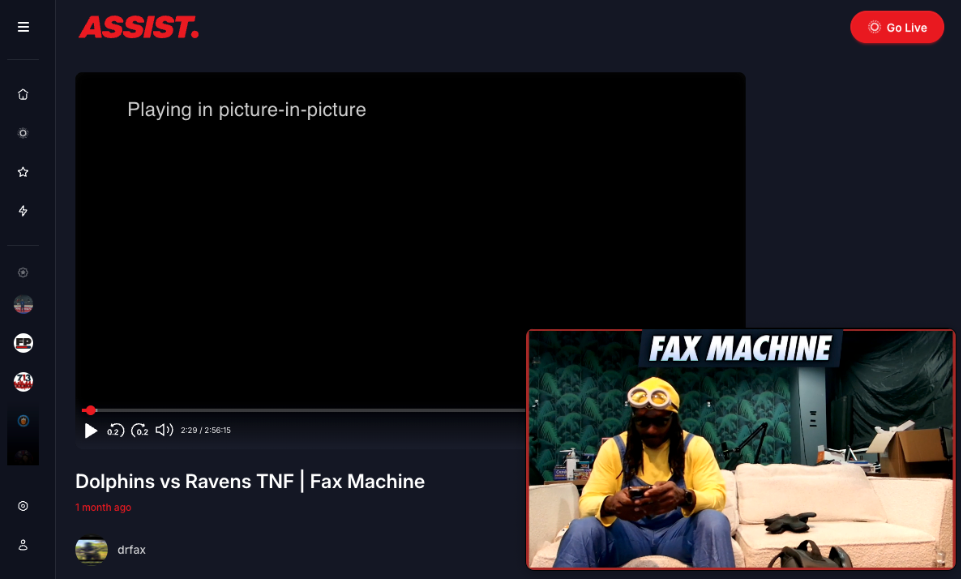
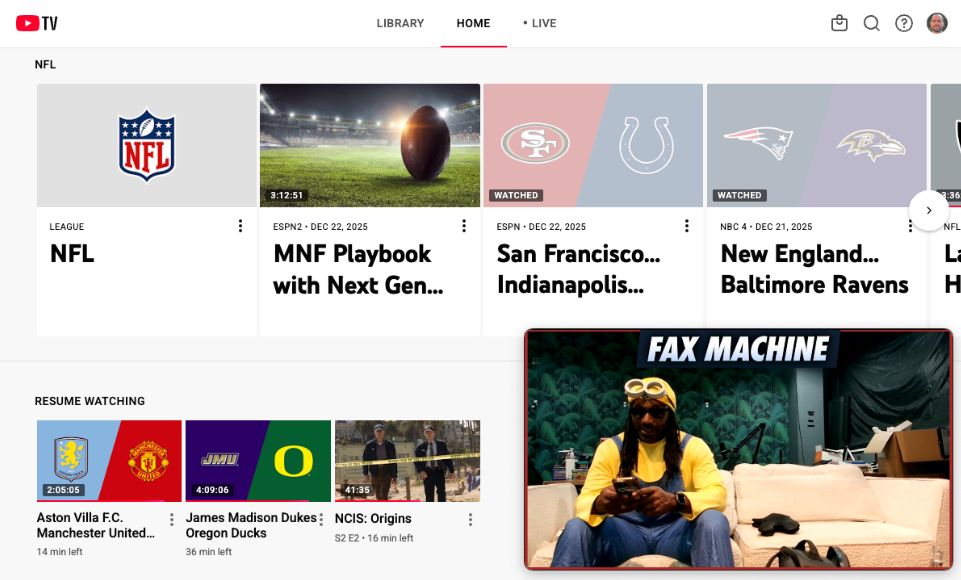
Select the PiP icon in the bottom-right corner to create a floating browser window. Open the game in a new tab, then synchronize the stream with gameplay.